
# Expense Transactions
This page is for viewing and managing expense transactions for your Trading Partner.
# Viewing Expense Transactions
Expense transactions are listed in the following form:

- Status indicator with the possible values:
- Linked to Expense
- No Linked Expense
- Transaction ID, followed by the transaction's description if one exists.
- Transaction data source.
- The transaction amount, with currency.
- The transaction date.
You have a few search and filtering options available to you:
Text supplied in the search bar will filter results by their Transaction ID, Source, or Description.
You can filter by whether the transaction is linked to an expense claim.
You can filter by transaction date.
If a transaction is linked to an expense claim, clicking on it will take you to the edit page for the claim.
TIP
Linking transactions to expense claims is not implemented yet.
# Importing Expense Transactions
If you have permission to import expense statements, you will see an icon button at the top of the page for uploading statement files.
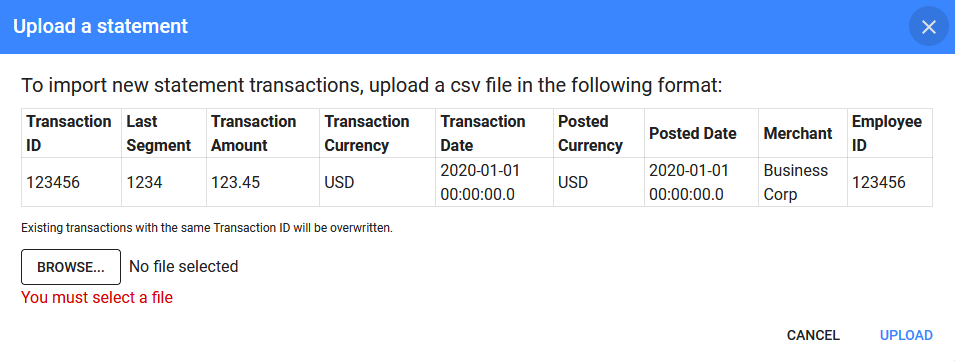
To import a statement, you must upload a .csv file in the prescribed format.
WARNING
Existing transactions with the same Transaction ID will be overwritten.
WARNING
The column names must be an exact match. Any extra columns that do not match the prescribed names will be ignored.
If there is anything wrong with the provided data, the import will be aborted and no action will be taken. You will be shown a modal describing the error. The following errors are possible:
- The file is not in the correct format.
- The file contains no records.
- There was invalid or incorrectly-formatted data in a specific row and column.
- The file contains duplicated Transaction IDs at specific rows.
If the import succeeds, you will be presented with a summary of how many rows were saved.